
Scanning a passport means creating a digital copy of the identity page of the document, which contains the photo, number, validity dates, and the machine-readable zone (MRZ). This operation, which has become common for online registration with airlines or for administrative procedures abroad, raises technical and security questions that most guides overlook.
Risks associated with passport scans stored on a phone
The first instinct of many travelers is to photograph the identity page of their passport with their phone and then forget the image in their gallery. This seemingly harmless action has changed in nature with the evolution of smart assistants integrated into smartphones.
Siri, for example, can retrieve a passport number directly from the photos stored on the device, without manual entry. The scan is no longer just an image: it becomes a structured, indexed data point accessible by third-party services.
In the event of a cloud account compromise or phone theft, this image functions as a database of official identifiers. A detailed guide explains how to scan your passport correctly while considering these storage and privacy issues.
The practical consequence: a passport scan should never remain in the standard photo roll or in an unencrypted cloud folder. The digitization itself is not the problem; it’s where the file ends up that creates the risk.
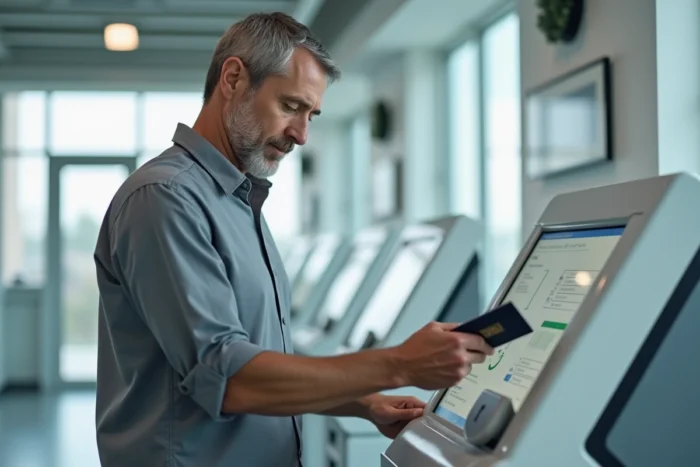
Identity page and MRZ: which part of the passport to scan
The page to scan is the biometric data page, usually the second page of the document. It contains all the usable information: name, first name, nationality, date of birth, expiration date, photo, and passport number.
At the bottom of this page is the machine-readable zone (MRZ), consisting of two lines of alphanumeric characters. This zone is read by airport scanners, check-in kiosks, and online identity verification systems. A scan that cuts off or renders the MRZ unreadable will be rejected by most digital services.
Technical criteria for a usable scan
- Sufficient resolution for each character of the MRZ to be individually readable, without blur or glare
- Complete framing of the page, including edges, without fingers or shadows over the text area
- Output format in high-quality PDF or JPEG, according to the requirements of the receiving service
- Contrasting background (dark surface under the open passport) to prevent white edges from blending with the background
On a phone, the “document scanner” function (available natively on most systems) automatically corrects perspective and adjusts contrast, resulting in a better outcome than a standard photo.
Digital security of the file after scanning
Once the scan is completed, the question of storage becomes a priority. Obligations related to the retention of digitized identity documents have strengthened in recent years, particularly under the LCB-FT regulation (anti-money laundering and counter-terrorism financing). Companies subject to these obligations must store copies in compliant systems, with access traceability.
For individuals, the principles remain similar:
- Store the file in an encrypted application or a secure document manager, not in the photo gallery
- Delete the scan from the roll and the trash after transferring it to the secure space
- Never send a passport scan via unencrypted messaging (SMS, certain public messaging apps)
- Ensure that automatic cloud synchronization does not duplicate the file in an unprotected space
Mobile identity and biometrics are progressing towards systems where the physical document no longer needs to be scanned manually. Several countries are experimenting with digital identity documents integrated into phones, with direct biometric verification. While waiting for the widespread adoption of these devices, scanning remains the standard for travel procedures abroad.
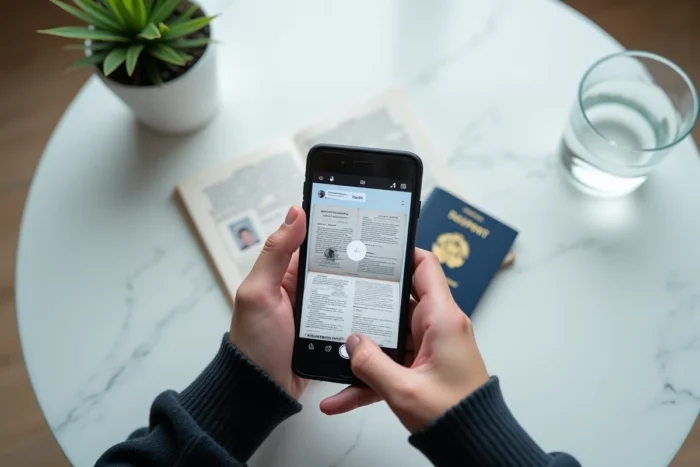
Passport scanning for travel: real cases
Online check-in with airlines often requires scanning the identity page of the passport via the phone’s camera. The system reads the MRZ to pre-fill the form fields. If the scan fails, manual entry takes over, but with a risk of error on the document number.
For an electronic visa application, the requirements are stricter. The file often must meet a maximum weight, a specific format, and a minimum resolution. A scan that is too compressed or poorly cropped results in the rejection of the application, sometimes without the possibility of immediate correction.
Precautions before departure
Keeping a secure digital copy of the passport in an offline accessible space (encrypted file on the phone) facilitates procedures in case of loss or theft of the physical document abroad. The consular services of France and Canada recommend having a separate copy of the passport during any stay outside the country of origin.
A properly executed scan stored securely simplifies formalities without exposing personal data. Scanning the passport is not risky in itself, provided that the resulting file is treated as what it is: an official identity document in digital form, with the same level of protection as the original.